Tempo-Based Scheduling
Introduction
Most web audio apps run on their own internal clock, separate from the DAW. WAX exposes the host’s transport, BPM, and playhead so web apps can follow the session. This lets web tools behave like real DAW-synced plugins.
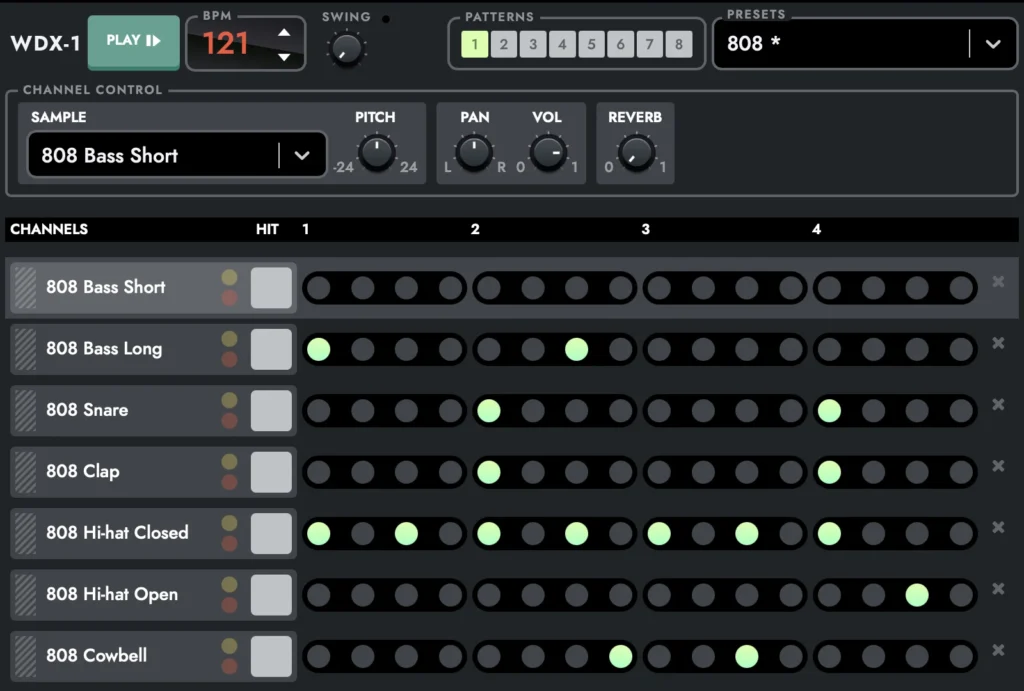
For a beat or step sequencer that fires events on a tempo grid, use transport (playhead) when the DAW is actively playing and a local clock when it is not. Always schedule sound on the audio thread so playback does not depend on JavaScript timers (which can stall when the tab is in the background or the editor is closed).
// Instead of this:
setInterval(() => {
  note.start()
}, 125)


// Do this:
const t = audioContext.currentTime + 0.05
note.start(t)
Sync with DAW
The idea: using window.PlayheadInfo, the DAW tells you “where I am in the song.” You turn that into “which step I’m on,” and you tell the Web Audio API to play the sound for that step at a specific time. The audio engine then plays it at the right moment, even if your JavaScript runs a bit late.
Step 1 — Get regular position updates
When your sequencer starts, call window.Request_PlayheadTimerStart(8); (8 = update interval in ms). WAX will keep updating window.PlayheadInfo at that rate.
Step 2 — Figure out “which step” you’re on
PlayheadInfo has timing.ppqPosition (position in quarter notes). For a 16-step pattern (one step per 16th note), one quarter note = 4 steps:
// convert playhead position to a step index
step = Math.floor(ppq * 4)   // 0 to 15 for 16 steps

var info = window.PlayheadInfo;
if (!info || !info.state.isPlaying) return;
var ppq = info.timing.ppqPosition;
var step = Math.floor(ppq * 4) % 16;
// 0–15, wraps for long songs
Step 3 — Schedule the sound at a specific time (don’t play “right now”)
If you play inside the callback, it can drift. Instead, pick a time slightly in the future and tell Web Audio “play at this time”:
var whenToPlay = audioCtx.currentTime + 0.01;
// schedule playback slightly in the future (10 ms)

bufferSource.start(whenToPlay);

// Web Audio will play it at the exact scheduled time
When you see the step change, schedule the sound for that step at whenToPlay. The audio thread plays at that exact time, so you stay in sync.
Minimal Example
var lastStep = -1;

function onPlayheadUpdate() {

  var info = window.PlayheadInfo;
  if (!info || !info.state || !info.state.isPlaying) return;

  var ppq = info.timing && info.timing.ppqPosition;
  if (typeof ppq !== "number") return;

  var step = Math.floor(ppq * 4) % 16;

  if (step === lastStep) return;
  lastStep = step;

  var whenSec = audioCtx.currentTime + 0.01;

  playStepAt(step, whenSec);
  // your function: play sound for step at whenSec
}

window.Request_PlayheadTimerStart(8);
setInterval(onPlayheadUpdate, 20);
playStepAt(step, whenSec) should use bufferSource.start(whenSec), not audioCtx.currentTime, so the DAW’s position and your sound stay in sync.
Conclusion
Schedule on the audio thread, not on JavaScript timers
setInterval and requestAnimationFrame are throttled when the tab is hidden. Use AudioContext.currentTime and schedule with bufferSource.start(whenSec) or gain.gain.setValueAtTime(..., whenSec). Use a timer only to “refill” a lookahead window: every 20–50 ms, schedule the next 100–200 ms of steps.
When there is no DAW playback (local-only)
Keep BPM from WAX_BPM() or your UI. Step duration = 60 / bpm / 4 (for 16th notes). Maintain “next step time” and step index; in your refill tick, schedule steps at nextStepTime and advance. Same “schedule at exact time” logic; the source of time is local instead of PlayheadInfo.