Introduction
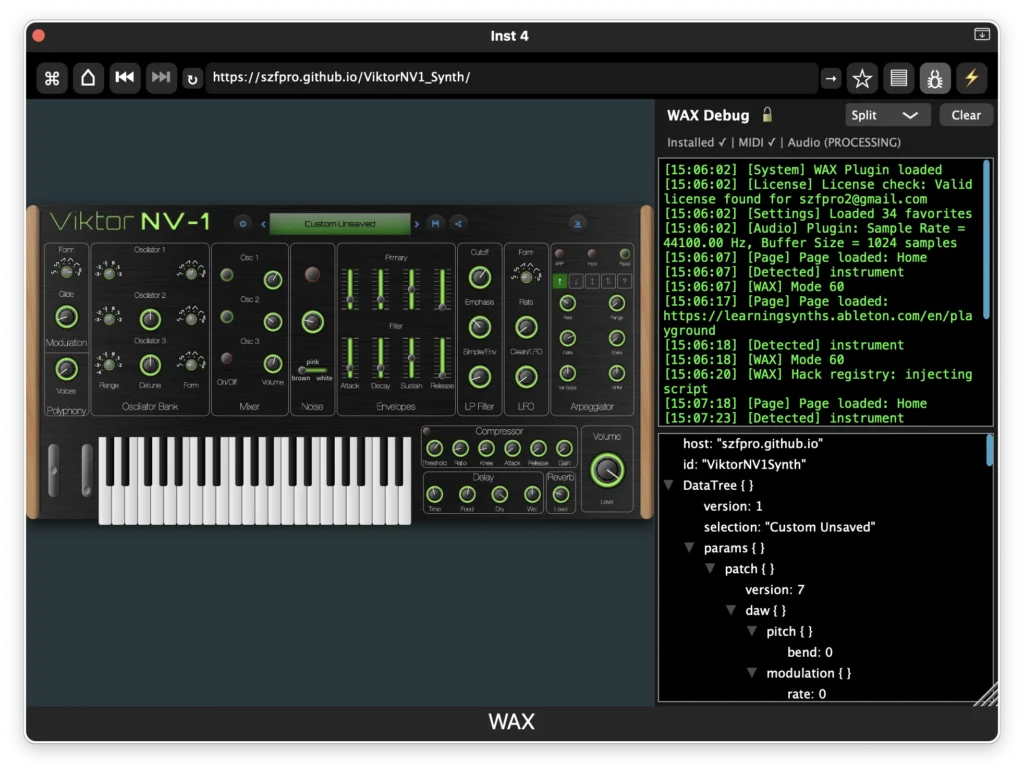
For developers, a “logger” is an essential tool that allows them to verify app behaviors under the hood without obstructing the presented experience. In the case of WAX, it also allows common users to verify if loaded pages have audio and midi capabilities or if the page loaded is an instrument or effect.
Log View
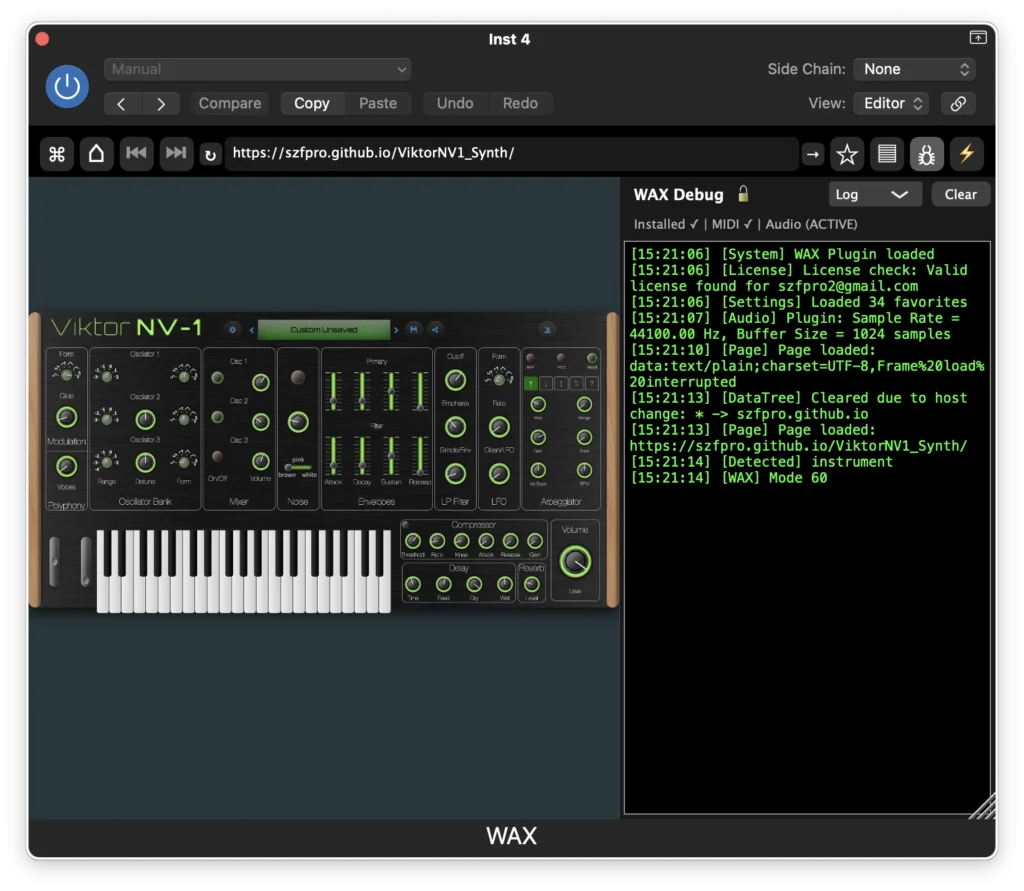
Provides a real-time view of internal activity within a WAX session. It allows users to inspect what is happening behind the scenes.
The log displays structured information about the page, including system events, Web Audio activity, MIDI detection, and WAX-specific runtime messages. This makes it easier to verify whether a loaded page contains audio or MIDI capabilities and to determine whether the page is functioning as an instrument, effect, or utility inside the WAX environment.
Messages appear in chronological order and are categorized so that different types of events can be quickly identified. For general users, it provides transparency into what WAX detects and how the loaded application interacts with the audio engine. For developers, the log acts as a lightweight debugging console for observing runtime behavior.
The Log Tool is especially useful for confirming compatibility, diagnosing issues, and understanding how external web apps integrate with the WAX audio system.
Tree View
The Tree View displays structured data captured by WAX from the loaded page.
This view is mainly used with integrated apps, where WAX stores information about the page’s state so it can be saved and recalled later. The tree format organizes this data in a clear hierarchy, making it easy to see what values WAX is tracking.
For users, the Tree View helps confirm that an app is successfully saving its state. If data appears in the tree, it means WAX has captured information that can be restored later.
For developers, the Tree View provides a simple way to verify what data is being stored and how it is structured, which helps when building integrations or implementing save and recall behavior.