
Introduction
The Favorites Panel lets you quickly save and organize the tools, apps, or pages you use most often.
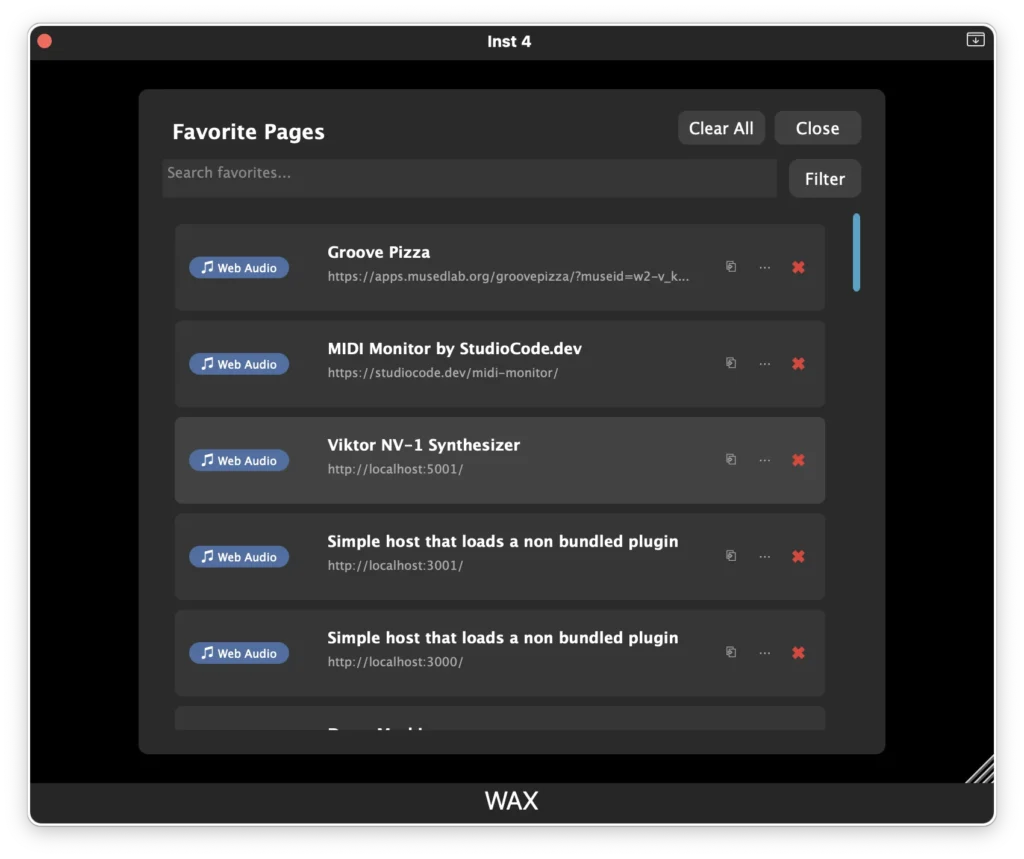
Adding or Removing Favorites
You can add any supported listing to your Favorites using the star button in the toolbar.
To add a favorite
- Open the listing you want to save.
- Click the ⭐ Star button in the toolbar.
- The item will immediately appear in your Favorites Panel.
To remove a favorite
- Open the listing or locate it inside the Favorites Panel.
- Click the ⭐ Star button again.
- The item will be removed from your favorites.
The star acts as a toggle — starred items are saved, unstarred items are removed.
Organizing Favorites with Categories
Favorites can be organized into categories to make navigation easier.
You can assign categories such as:
- Synths
- Effects
- Sequencers
- Utilities
- Learning Tools
Categories help you group related items and quickly find what you’re looking for.
Searching and Filtering Favorites
The Favorites Panel includes tools to quickly locate saved items.
Search by Text
Use the search field to find favorites by name or keywords.
Example searches:
- “drum”
- “sequencer”
- “filter”
Filter by Category
Use the category filter to show only favorites within a specific group.
For example:
- Show only Synths
- Show only Sequencers
- Show only Learning Tools
You can combine search + category filters to narrow results even further.
Tips
- Use favorites to build your own personal tool library.
- Categories help keep large collections organized.
- The star button lets you quickly bookmark items while browsing.